2025-01 Court Miss-out and Refusal Procedures

Bulletin #2025-01
COURT MISS-OUT AND REFUSAL PROCEDURES
INTRODUCTION
The purpose of this informational bulletin is to inform all personnel assigned to the Custody Services Division on the proper procedures to follow in the event an inmate refuses to attend court (Refusal) or otherwise is unable to attend a court appearance (Miss-out), and to advise supervising line deputies and sergeants on how to document both court Refusals and Miss-outs.
BACKGROUND
Until recently the Department tracked Refusals and Miss-outs using a paper-based system. In February of 2025, the Department replaced the paper-based system with a paperless automated system called TRACE (Tracking Refusals and Court Exceptions).
Concurrent with the rollout of the TRACE system, the Department has also implemented a new process to document Refusals and Miss-outs. This bulletin provides details on both the new TRACE system and the procedures to document Refusals and Miss-outs.
PROCEDURES
TRACE SYSTEM
All Refusals or Miss-outs are to be entered into the TRACE system in a timely manner. The TRACE system can be accessed in any of the following ways:
- Clicking this link
- Going to [REDACTED TEXT]
- Searching the Intranet for any of the following words: ‘Court Refusals,’ ‘Miss-outs,’ ‘TRACE’
Minimum requirements to create any entry in TRACE are:
- Inmate last name
- Booking number
- Refusal/Miss-out date/time
- Unit submitting
- Miss-out reason
- Comments/details about Refusal or Miss-out reason
For Refusals only:
- A video recording evidencing the reading of the Court Appearance Refusal Admonishment (see Figure 2 Court Appearance Refusal Admonishment)
- Employee number of personnel who read the Admonishment to the inmate
- The name of the sergeant who was notified
For all other Miss-outs
- Medical ‘No-Go’ paperwork
For Refusals a video file must be uploaded.
‘Refusal’ forms are no longer required or accepted.
After submitting the TRACE notification, the employee uploading will receive an e-mail notification that the submission was accepted or rejected. For submissions that were accepted, verify that the inmate’s last name on the confirmation (bubble 2) matches the name you entered in the submission (bubble 1). If the last names do not match, you entered an incorrect booking number. Please resubmit and notify the Court Refusal Team (CRT) to void the incorrect submission (see Figure 1 Exemplar TRACE Submission below).
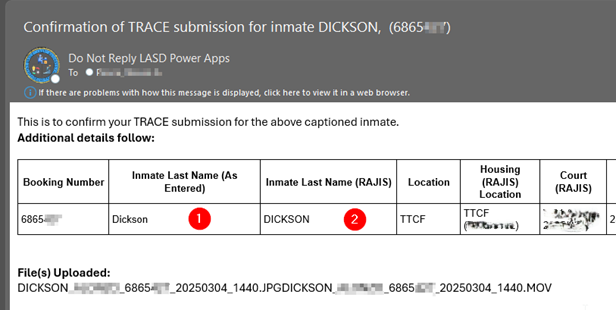
Figure 1 Exemplar TRACE Submission
The most common reason for a rejection is an invalid booking number.
The confirmation email is your record of an accepted TRACE submission. If you experience technical issues with your TRACE submission, contact CRT at [REDACTED TEXT] and be prepared to give them the message number at the bottom of the email you received.
REFUSAL SPECIFIC PROCEDURES:
When an inmate refuses to go to court, every attempt should be made to explain the importance of attending court. However, if the inmate continues to refuse, custody personnel shall notify their sergeant.
The sergeant or their designee (supervising line deputy) will read the court refusal admonishment to the inmate. The reading of the admonition and the inmate’s response will be video recorded and properly labeled in the following manner: Date, Time, Booking Number, Last Name, First Name.
Your video file name should not contain any spaces or other special characters such as “#”. A properly named video file would look like: ‘20250301_0630_1234567_InmateLast_InmateFirst”
In the event an inmate refuses after they arrive at IRC Old Side Courtline, a sergeant assigned to IRC Old Side Courtline, or their designee (supervising line deputy), will conduct and record the reading of the court refusal admonishment and the inmate’s response. See below for the court refusal admonishment:

Upon completion of the refusal video, facilities will enter all required information and upload the video into the TRACE system as soon as feasible, but no later than 1100 hours.
The IRC Court Refusal Team will then transfer the videos from TRACE onto Court LEA Information Center (CLIC) for the courts to access.
REFUSAL AND MISS-OUT DASHBOARD
As a companion tool to the TRACE system, an online dashboard has been created. The dashboard provides both current and historical statistics about Refusals and Miss-outs. The Dashboard is an important tool for unit commanders within Custody Division as well as Court Services Transportation Bureau (CST). The dashboard can be accessed by clicking here or searching the Intranet for the word ‘Navigator,’ once on the Power BI Navigator page select ‘TSD-BPIG-I-160’. Below is an exemplary screenshot of the dashboard:

Figure 3 TSD-BPIG-I-160 TRACE Dashboard
- The dashboard is updated every 30 minutes, Monday-Friday, from 0400-1100, and hourly thereafter until 1800. The date/time of the most recent update is located in the upper right of each dashboard page (see bubble 3).
- If you wish to access the dashboard, send yourself an email link to the report whenever you wish. To do this, click the ‘Subscribe to Report’ link at the top (see bubble 2 above).
- You can also get details about Miss-outs by using the page navigation (see bubble 1 above) and selecting page 2.
- Information in the table visual on page 2 can be exported by pressing the ellipses in the upper right of the visual (see Figure 4 TRACE Dashboard Exemplar page 2 below)

Figure 4 TRACE Dashboard Exemplar page 2
ADDITIONAL INFORMATION and FAQS
Q: How large can the video file be?
A: Video files should be less than 500MB in length and not be of the ‘MTS’ format.
Q Our unit’s camera records in ‘MTS’ format, which isn’t accepted. What should we do?
A: If your unit’s camera records in ‘MTS’ format and is a Sony CX405 ‘Handy Cam,’ it can be reconfigured to record in MP4 format by following the following instructions:
- Turn on the camera and press the MENU button.
- Navigate to Image Quality/Size settings.
- Look for File Format or Recording Mode.
- Select MP4 instead of AVCHD.
- Exit the menu and start recording in MP4 format.
Q: What if an error was made with a TRACE submission?
A: Create a new entry then call CRT to provide information on the entry that needs to be deleted.
If there is any doubt regarding the above, please contact IRC CRT at [REDACTED TEXT].